
A Parent's Guide to Safe AI for Kids
How to set up child-safe AI access with parental controls and content filters
AI is common in schoolwork and creative projects, so a lot of parents ask: How can I let my kids use AI safely? With the right setup, AI can help with learning while keeping kids protected.
Go Ask Chat is built for families.[1] The parental controls give you oversight over your child's AI use, from content filtering to usage limits and activity monitoring.
Before the safety settings, here is what kids often use AI for:
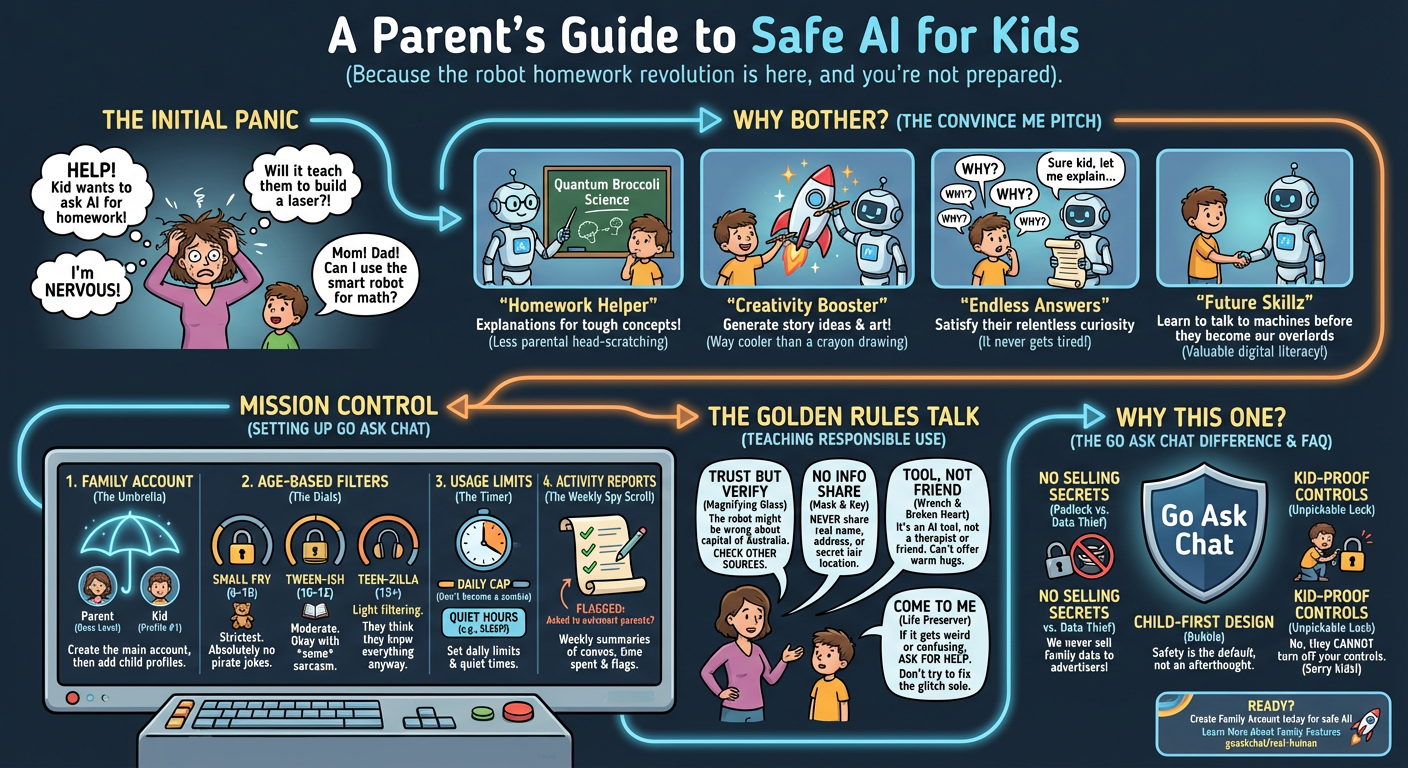
- Help with homework — Get explanations for difficult concepts in math, science, and history
- Encourage creativity — Generate story ideas, learn about art, or explore creative writing
- Answer endless questions — Kids are naturally curious, and AI provides patient, detailed answers
- Build digital literacy — Learning to communicate effectively with AI is a valuable skill for the future
Go Ask Chat includes parental controls that put you in charge.[1] Here's how to set them up:
Step 1: Create a Family Account
Start by creating your parent account, then add child profiles under your family umbrella. Each child gets their own profile with age-appropriate settings.
Pro Tip
Set different restrictions for different ages. Your 8-year-old might need stricter content filters than your 14-year-old.
Step 2: Enable Content Filtering
Content filters block inappropriate topics and redirect conversations toward educational content. You can choose from preset levels:
- Young Children (Under 10) — Strictest filtering, educational focus only
- Pre-Teen (10-12) — Moderate filtering with more topic flexibility
- Teen (13+) — Light filtering with emphasis on responsible use
Step 3: Set Usage Limits
Control how much time your child spends with AI each day. Set daily time limits, quiet hours (like during homework time or bedtime), and weekly usage caps.
Step 4: Enable Activity Reports
Receive weekly summaries of your child's AI conversations. See what topics they're exploring, how much time they're spending, and any flagged interactions that might need your attention.
Controls help, but the conversation matters too:
- AI isn't always right — Teach them to verify important information from other sources
- Never share personal info — Names, addresses, school names, or passwords should never be shared
- AI is a tool, not a friend — Help them understand the difference between AI assistance and human relationships
- Ask for help — If something feels wrong or confusing, they should always come to you
The best parental control is an ongoing conversation with your child about technology and safety.
Go Ask Chat is built with families as a priority:[1]
- No data selling — We never sell your family's data to advertisers
- Child-first design — Kid profiles have safety features enabled by default
- Real-time monitoring — Get alerts if concerning content is detected
- Educational focus — Our AI is tuned to encourage learning and curiosity
Ready to Get Started?
Create your family account today and give your kids a safe, educational AI experience.
Learn More About Family FeaturesWith proper supervision and our Young Children content filter, kids as young as 6 can benefit from AI for educational purposes. We recommend direct supervision for children under 10.
Yes. Parent accounts have full access to conversation history for all child profiles. You can review conversations at any time.
The AI will redirect the conversation to appropriate topics and log the attempt. You'll receive a notification in your weekly activity report, or immediately if you enable real-time alerts.
No. Child profiles cannot modify their own restrictions. Only the parent account holder can adjust settings.
† Specifications reflect information at time of publication. Verify current data at source links.